
Storage Terms Every Laptop Shopper Should Recognize

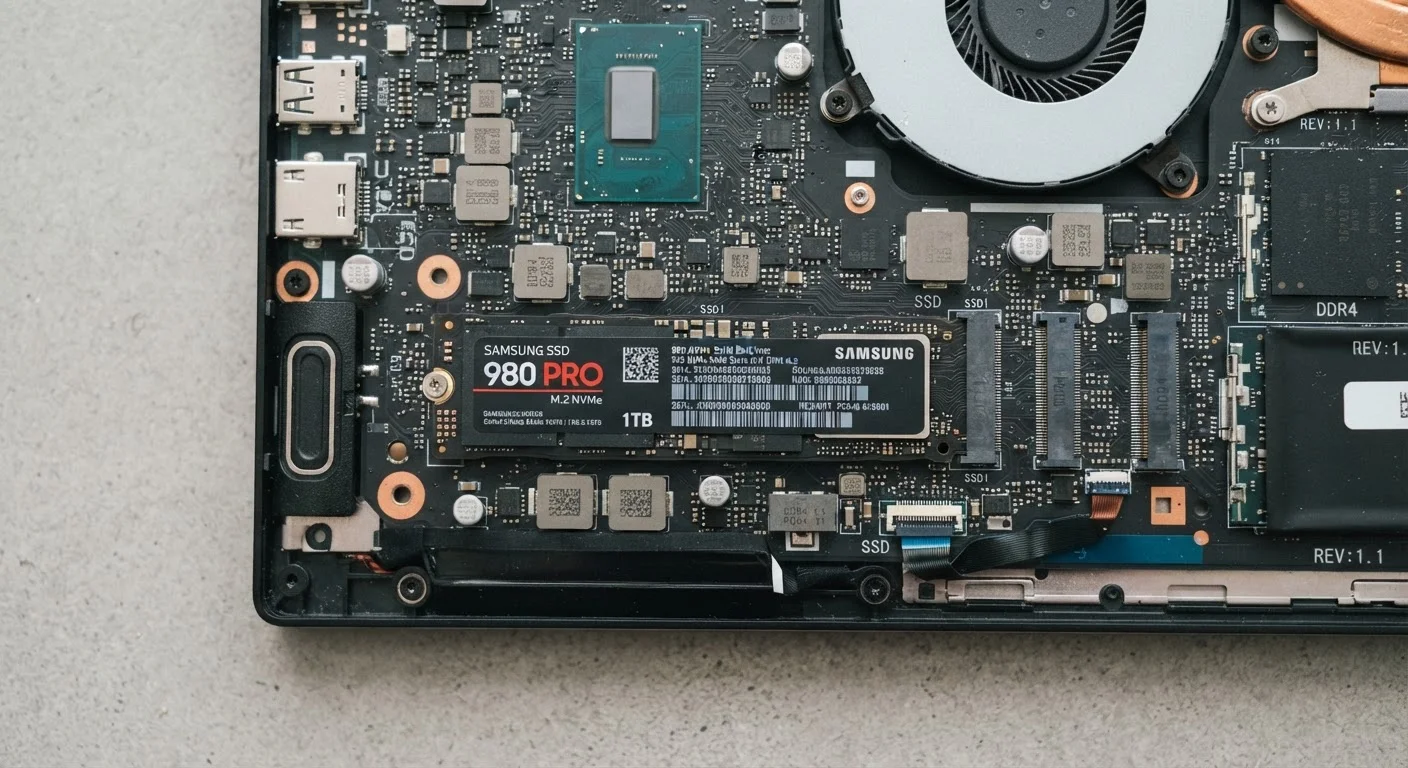
Photo: UltraSearches.com | Search Results You Can Trust editorial
Why Storage Labels Matter Before You Buy
Walk through any electronics retailer - physical or online - and you'll encounter a parade of storage abbreviations: SSD, HDD, NVMe, eMMC, PCIe. These aren't just marketing shorthand; they describe fundamentally different hardware with real differences in speed, durability, and longevity. Picking the wrong type for your workload can mean a laptop that feels sluggish from day one, even if every other spec looks solid on paper.
This reference covers the most common storage terms you'll encounter, what they actually mean in practice, and what questions to ask before committing to a purchase. For a broader breakdown of electronics vocabulary, see the Consumer Electronics Terminology Glossary.
| Fastest common laptop storage type | NVMe SSD (via PCIe) |
| Most budget-friendly capacity per dollar | HDD (where still offered) |
| Storage type in most thin modern laptops | NVMe or SATA SSD |
| Common entry-level storage in Chromebooks | eMMC (32-128 GB range) |
| Upgradability | Varies; many thin laptops have soldered storage (Check specifications before purchasing) |
Core Storage Types Explained
HDD - Hard Disk Drive
HDDs store data on spinning magnetic platters. They offer large capacities at lower cost per gigabyte, but the moving parts make them slower, heavier, and more vulnerable to physical shock. They're still found in some budget laptops and external drives, but are increasingly rare in thin, portable designs.
SSD - Solid State Drive
SSDs use flash memory chips with no moving parts. They're significantly faster than HDDs for nearly every task - booting, launching apps, transferring files - and they handle drops or jostling far better. Most laptops sold today include some form of SSD.
NVMe - Non-Volatile Memory Express
NVMe is a communication protocol designed specifically for fast flash storage. An NVMe SSD connects directly through the PCIe (Peripheral Component Interconnect Express) lane on the motherboard, bypassing older, slower pathways. The result: sequential read speeds several times faster than standard SATA SSDs. If you regularly move large files, edit video, or run demanding software, NVMe makes a meaningful difference.
SATA SSD
SATA SSDs use flash memory like NVMe drives but communicate through an older interface originally built for spinning hard drives. They're faster than HDDs but noticeably slower than NVMe. You'll find them in mid-range and older laptops. For everyday tasks like web browsing, email, and documents, the gap between SATA and NVMe is rarely felt.
eMMC - Embedded MultiMediaCard
eMMC storage is soldered directly onto the motherboard, common in budget Chromebooks and entry-level Windows laptops. It uses flash memory but a slower interface than even SATA. eMMC is adequate for light use - streaming, basic documents - but can feel limiting if you multitask heavily or store many local files.
SSD
Solid State Drive - a storage device that uses flash memory chips and has no moving parts. SSDs are faster, lighter, and more durable than traditional hard drives.
HDD
Hard Disk Drive - a traditional storage device that uses spinning magnetic platters to read and write data. HDDs offer high capacity at lower cost but are slower and more fragile than SSDs.
NVMe
Non-Volatile Memory Express - a high-speed communication protocol for SSDs that connects directly via PCIe, delivering much faster transfer speeds than older SATA-based drives.
eMMC
Embedded MultiMediaCard - a flash storage type soldered to the motherboard, common in budget devices. It is slower than SATA SSDs and cannot be upgraded.
PCIe
Peripheral Component Interconnect Express - a high-speed interface on a laptop's motherboard used by NVMe drives to transfer data much faster than older connections.
SATA
Serial ATA - an older interface standard that connects storage drives to a motherboard. SATA SSDs are faster than HDDs but slower than NVMe drives using PCIe.
Capacity, Speed, and Upgradability: What to Check
Beyond storage type, three practical questions should guide your evaluation:
- How much storage do you need? 256 GB is a common entry point. Heavy media storage, game installs, or large project files generally call for 512 GB or more. Cloud storage can supplement local space, but shouldn't substitute for it if you work offline often.
- Is the storage upgradable? Many thin laptops now solder storage directly to the board - meaning what you buy is what you have forever. If future expansion matters to you, verify whether the drive is user-replaceable before purchasing.
- What does the speed rating actually reflect? Manufacturers advertise sequential read/write speeds, which measure performance in ideal conditions. Real-world speeds - especially for small, random file operations common in everyday use - are often lower. Be skeptical of speed numbers in isolation. The specs that rarely matter in practice article covers this pattern more broadly.
3-5×
NVMe speed advantage over SATA SSD
Sequential read speeds for NVMe drives typically range from 3,000-7,000 MB/s versus 500-600 MB/s for SATA SSDs under manufacturer test conditions.
~10×
SSD vs. HDD real-world boot speed
SSDs consistently boot operating systems and launch applications far faster than spinning hard drives in independent hardware tests.
Caring for your storage also extends device life. Good software habits and avoiding near-full drive conditions help maintain performance over time - something covered in depth in the guide on extending the useful life of your electronics.
If this is your first major electronics purchase and you're still building your evaluation framework, the first-time shopper's guide offers a grounded starting point well beyond storage specs alone.
The content on this site is for informational purposes only and is not a substitute for professional advice. Always consult a qualified professional for guidance specific to your situation.